Multi-screen setup for small churches: step-by-step on a tight budget
How to build a setup with a main screen + stage monitor + remote control in a small church for under $500 USD. Hardware, configuration and troubleshooting.

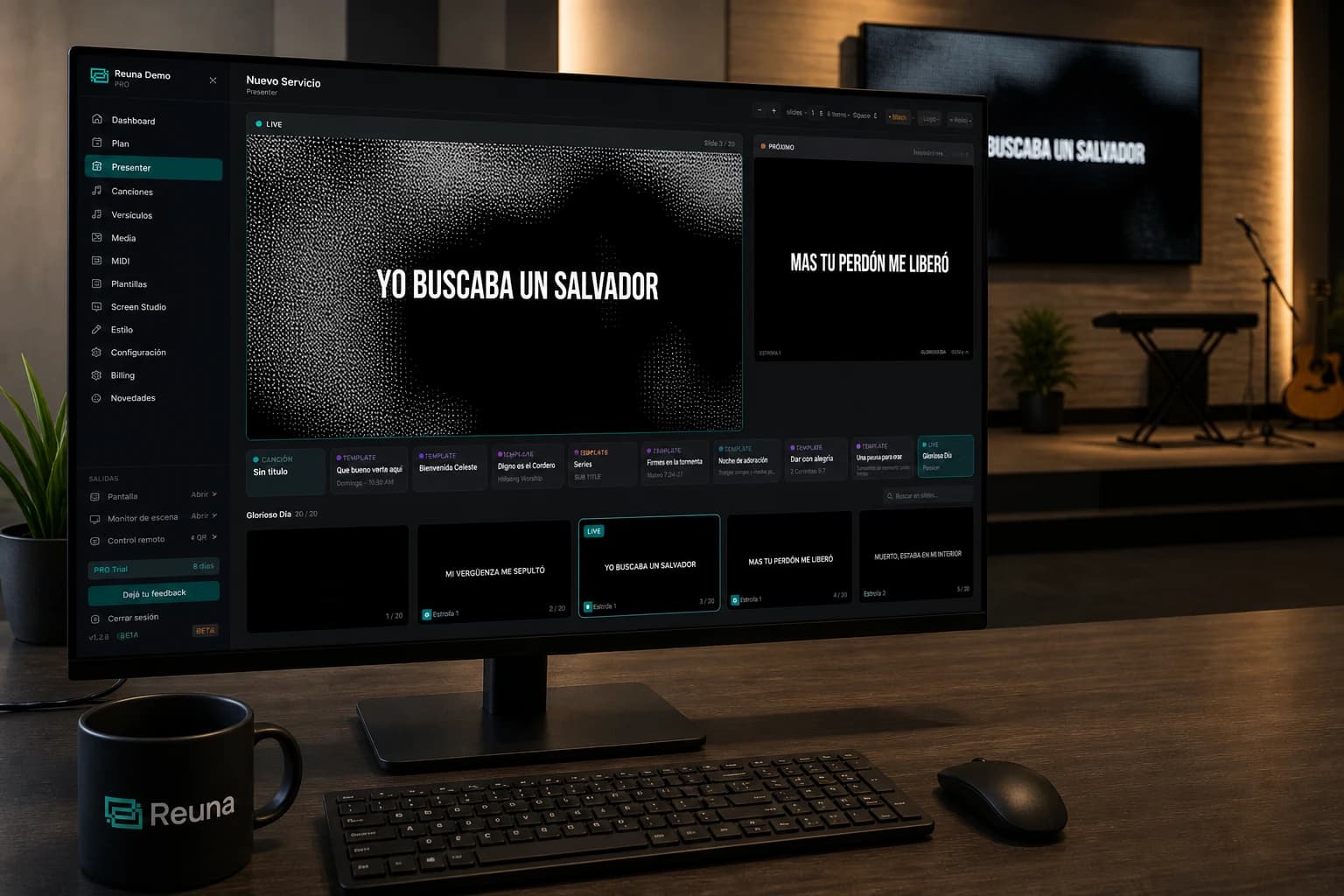
Five years ago, building a multi-screen setup at a small church was a technical nightmare: video capture cards, expensive HDMI splitters, paid software, and a dedicated technician. Today it''s solved with off-the-shelf TVs, a couple of Mini PCs, and web-based software.
This guide is for churches of 50–200 people who want to build a serious setup: congregation projection + stage monitor for the musicians + phone remote control, all under $500 USD.
The target setup
You''ll end up with three "screens":
- Congregation screen. A 50–65" TV or a projector mounted up front. Shows song lyrics, scripture, announcements.
- Stage monitor (stage display). An old TV or tablet placed on the floor in front of the musicians. Shows what''s coming next, current cue time, and private notes.
- Remote control (remote control). The operator''s phone as a remote.
The secret: each "screen" is just a web browser opening a different Reuna URL. No proprietary software or specialized hardware required.
Hardware: the shopping list
Assuming you already have a computer for the operator (any laptop works):
- 55" 4K main TV — $300–400 USD new. If your sanctuary has good lighting, a TV looks better than a budget projector. Look for HDMI 1.4+ and an "image" mode without processing (often called "PC mode" or "game mode").
- Stage TV or monitor — $0–100 USD. Recycle an old 32" TV, an Android tablet from a drawer, or buy a used monitor. To show 2–3 lines of text + time, 720p is enough.
- Mini PC or Chromecast with Google TV — $30–80 USD per secondary screen. This avoids running long HDMI cables. Each screen opens the URL in its own browser. A Raspberry Pi works too.
- HDMI cables or network connection — If screens are within 5 meters of the operator PC, run HDMI direct. If 10+ meters, prefer Mini PC + WiFi.
Estimated total: $350–500 USD depending on new vs. used hardware.
Step-by-step setup
Step 1 — Account and workspace
Create your workspace at Reuna (app.reunapresenter.com). Pick a name that represents the church (you''ll use it in URLs). The Free plan is enough to start; if you need more than 1 simultaneous independent screen, you''ll want the Pro plan.
Step 2 — Configure the main screen
- On the operator PC, open the output remote and scan the QR with your phone.
- Connect the main TV via HDMI to the PC. Configure Windows/Mac to "extend displays" (not duplicate).
- Drag the browser window to the TV''s screen and press
F11for fullscreen. - In the workspace Style settings, adjust font, size, and background. Test with the actual TV, not the preview — colors and sizes look different.
Step 3 — Configure the stage monitor
- On the secondary screen (Mini PC, tablet, or Chromecast with keyboard), open the browser and go to
your-church.reunapresenter.com/output/stage. - Go fullscreen. It will show the current slide + the next + cue time + private notes.
- Position the screen at the musicians'' eye level, not the floor.
Step 4 — Phone remote control
- In the operator dashboard, click the QR icon.
- Scan with the phone. It opens in the mobile browser.
- From there, advance slides, blank the screen, or switch songs. No app required.
Troubleshooting the most common problems
The main screen "lags" or has delay
Typical cause: TV in "cinema" mode or with image processing enabled. Look in the TV settings for "PC", "Game", or "Pure Direct" mode and disable all processing (motion smoothing, dynamic contrast). Delay should drop from 80ms to under 30ms.
The stage monitor disconnects
If you''re using a Chromecast, make sure the WiFi has good coverage near the stage. Better: run an Ethernet cable to a Mini PC and forget about WiFi for critical screens.
The phone remote control disconnects
Reuna automatically reconnects when the network returns. If the operator''s phone enters "battery saver" mode, it can lose the session. Set the operator''s phone to "do not enter sleep" during the service.
Different resolutions across screens
Not a problem. Reuna scales typography relative to each screen''s size. But make sure each screen runs at its native resolution (1080p or 4K), not a software-scaled one.
What you DON''T need to buy
A list of things you''ll see in articles from large US churches that you don''t need to start:
- Active HDMI splitter. You don''t need it if you use the "each screen = a URL in a browser" approach. The splitter is for duplicating the same signal, which isn''t what you want here.
- External video capture / capture card. Only if you''ll do live streaming with OBS. For pure projection, irrelevant.
- Video switcher / mixer. Overkill for a small church. The operator PC is the single source.
- Paid projection software. Reuna Free covers the use case. If you grow and need more independent screens, the Pro plan at $12/month is orders of magnitude cheaper than ProPresenter or EasyWorship.
Next step
Start simple: just main screen + phone remote control. That alone transforms the experience. Once you''ve had it stable for a couple of Sundays, add the stage monitor.
The common trap is wanting to set up everything in one week. Better to iterate: each new element is tested on Saturday, not Sunday. If something fails on a Sunday, always have a plan B — a second operator PC fully configured, or at least a PowerPoint with the service''s songs ready to open.
If your church is small and you want a workflow optimized for your context, see Reuna for small churches.
Ready to try Reuna?
Get started for free with no install. Forever-free plan, no credit card required.
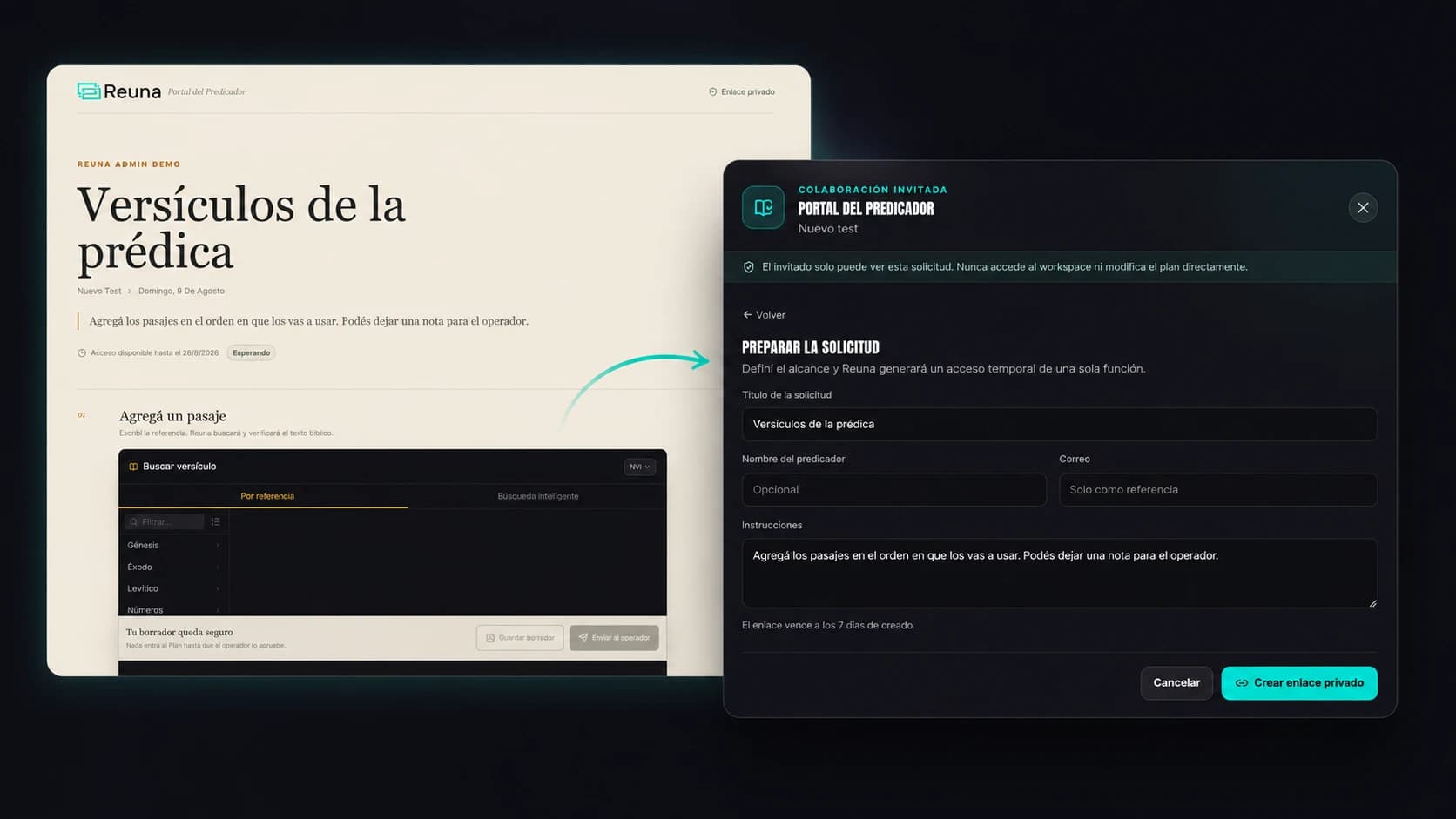
Preacher Portal: No More Chasing Your Guest Speaker Over WhatsApp
Reuna's Preacher Portal lets a guest speaker add their scripture references from their phone, no account needed, while you approve every item.
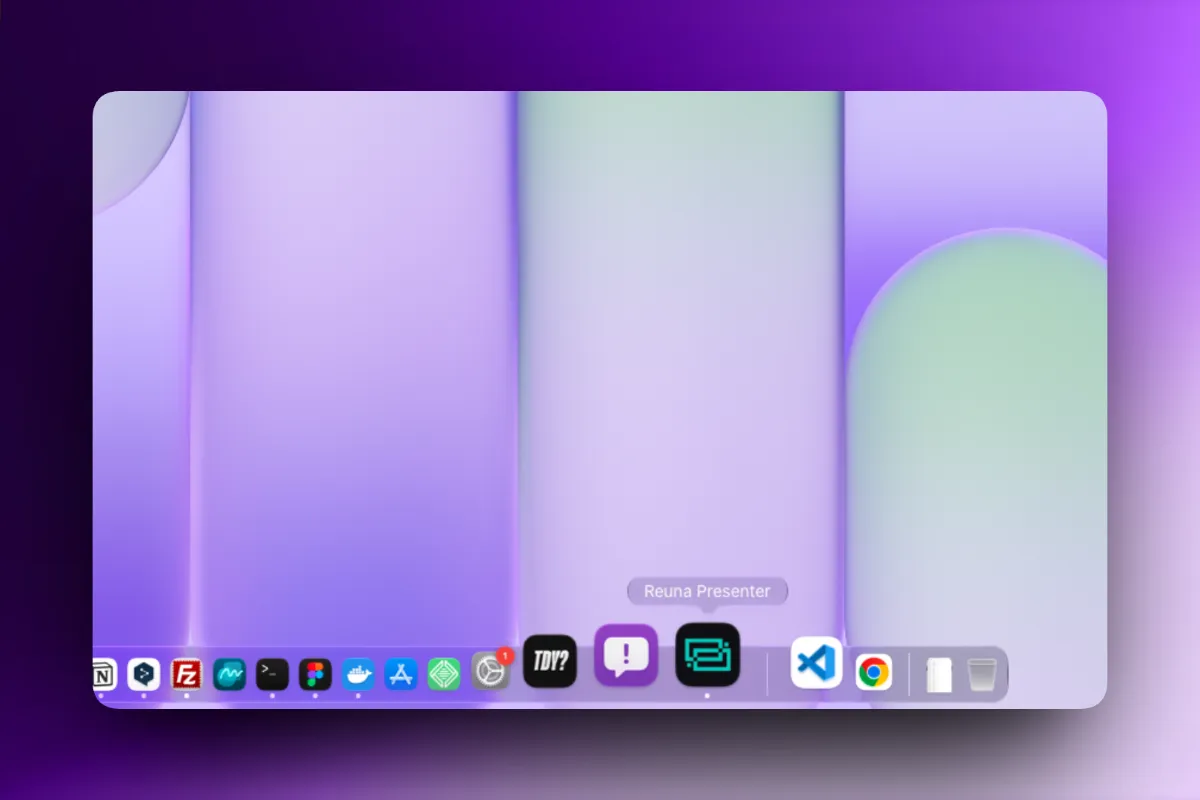
How to Install Reuna on Your Church's Computer (and Why It's Worth It)
Reuna can now be installed as an app in two clicks, no download or admin password required. Here's the step-by-step and why it's worth doing.
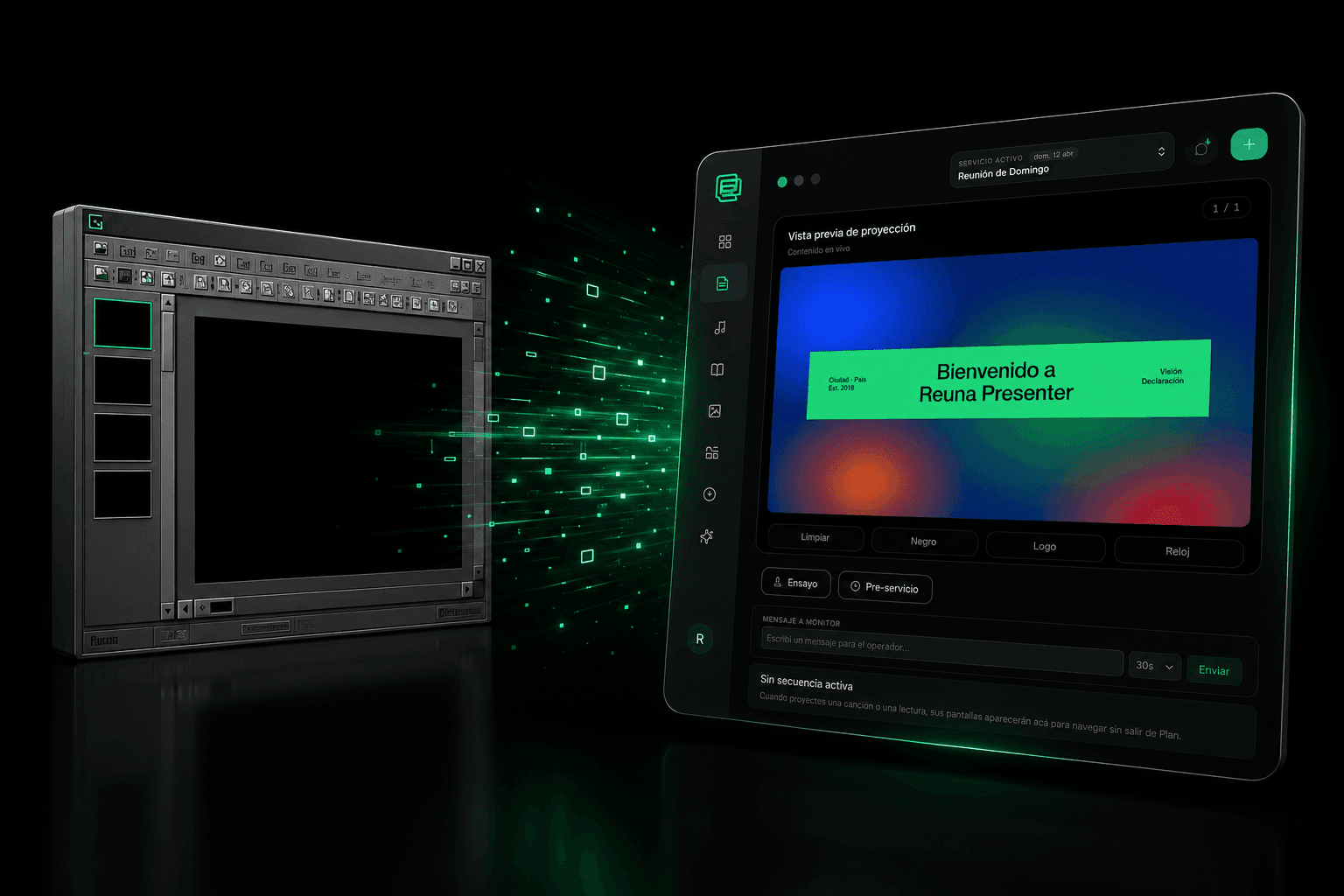
OpenLP Alternative: When It Makes Sense to Leave Free Open-Source Software
OpenLP is free and open-source, but requires self-managed installation and upkeep. We compare it with Reuna Presenter to see when switching makes sense.