Phone Remote Control: Run Church Projection Without Being in the Booth
With Reuna's remote control, scan a QR code and your phone shows what's on air, steps through the service and projects, with nothing to install.

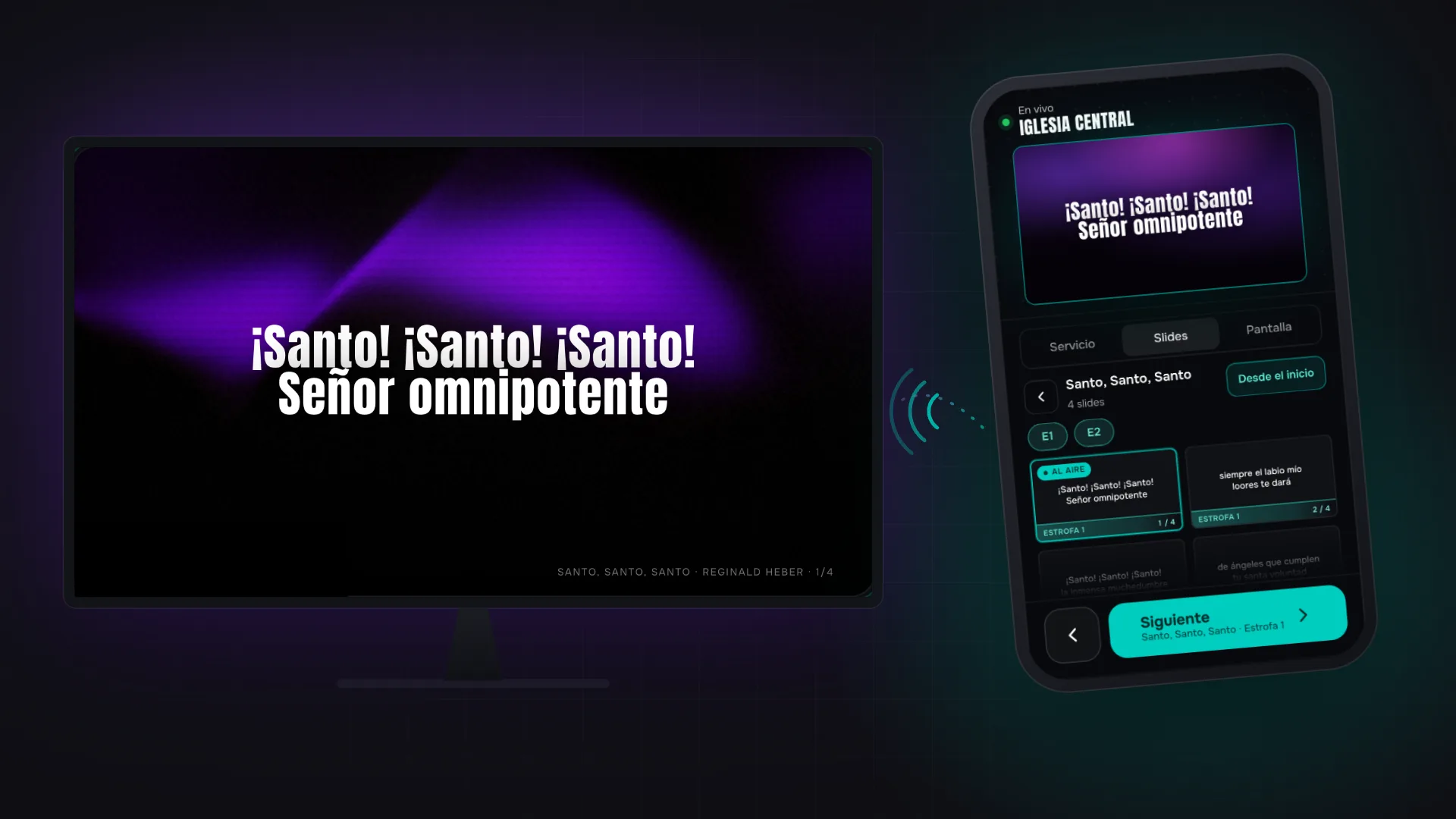
Sunday, 10:15 a.m. The band repeats the chorus one more time than rehearsed, and whoever's running slides is up in the booth at the back, guessing what comes next from the worship leader's gestures. Or there's no booth at all: there's one volunteer who projects and also sings. In a lot of churches, the projection computer sits far from the person who knows best what comes next — even though that person has the best remote control in their pocket: their phone.
That's what Reuna's remote control is for: scan a QR code and your phone runs the projection from anywhere in the sanctuary. Since October 2026 it's a mini Presenter with the whole service, not just what's on air. Here's how it works and how it stacks up against the others.
What the phone shows now
At the top you see what's on air: the real projection, with the background (animated ones too), the typography and the frame. You know what the congregation is seeing without turning around — except for videos or images stored only on the computer, which don't show there.
Service
Every item in the service plan, in order — songs, scriptures, videos — with a marker on the one that's on air. Tap one and its slides open.
Slides
Any item's slides as cards, colored by section. Songs get a chip for each part: tap the chorus chip and its first slide (the first time the chorus comes up) gets marked.
Screen
“Black,” “Clear,” “Logo,” “Clock” and “Undo the last projection”; play or pause the video on air; and a “Message to the operator and the stage” of up to 200 characters. It shows up on the stage displays and operator monitors of the computer that has control, and clears after 30 seconds.
Two taps to project
A phone propped on the guitarist's music stand gets bumped. That's why tapping a slide card never projects it right away: the first tap marks it as “Next” and the second one projects it.
At the bottom there's a big button that works like a clicker: if something is marked, it says “Project marked”; if not, it advances to the next slide and, when the song ends, moves on to the next item. Going back with the left arrow also takes two taps. Heads up: the big button, “From the start” (projects the item from its first slide) and the “Screen” buttons take a single tap.
And if the plan changed on the computer while you were choosing, the phone warns you instead of projecting the wrong thing.
How to connect the remote control
1. On the computer that projects, open today's service in the Plan. Presenter works too, in the browser or in the desktop app.
2. In the sidebar, under “Outputs,” click “QR” next to “Remote control.” If the sidebar is collapsed, click the Outputs icon first.
3. Scan the QR code with your phone's camera. It opens in the browser, on iPhone or Android.
4. Wait for “Live.” You're now running the projection.
Both ends need internet, but not the same network: the phone can use the church Wi-Fi or cellular data. The computer needs Reuna open, because it's the one projecting. And the code expires 24 hours after it's generated; the QR box shows how many hours it has left.
If Reuna is open on two computers — the one in the booth and the pastor's laptop, for example — the phone obeys only the one that's been connected longest; the other shows a notice with a “Take control” button. Before the service, make sure the projector computer is in charge: if you see the notice there, click “Take control,” or the phone will drive the other computer.
Security, no fine print
Because the remote travels over the internet, we designed it with intruders in mind:
- The QR holds a signed code that expires after 24 hours (a phone that's already connected can keep working for up to one more day).
- Only the Owner, Admin and Operator roles can generate the QR code; a Member can't.
- Every command from the phone is signed, and the computer checks it again before applying it.
- The full service the phone receives travels encrypted; what's on air at any given moment is signed, but not encrypted.
“Disconnect” removes the phone from the session, but the code stays valid until it expires, and “Generate new code” doesn't cancel the previous one. So don't drop the QR code in the church group chat: show it on the computer and let whoever is going to use it scan it.
How it compares with other remotes
The best-known programs also have remote controls, and credit where it's due: they aren't sold separately, and some do things Reuna's doesn't. ProPresenter offers ProPresenter Remote, an app included with the subscription that handles slides, macros, props, timers and stage messages, plus ProPresenter Control, in the browser. EasyWorship Remote is free, on iOS since 2017 and on Android since 2018. FreeShow serves its remote from the computer that projects — it opens in the browser with a QR code or the IP address — and adds the free FreeShow Remote app.
The difference is the network: according to their official listings and documentation, all of them need the phone on the same local network as the computer. Reuna's goes over the internet, so nobody has to be handed the Wi-Fi password. The flip side: if the internet drops at either end, the remote stops responding (the computer keeps projecting).
| What you install on the phone | What network it needs | |
|---|---|---|
| Reuna Presenter | Nothing: the browser, with a QR code | Internet on the phone and the computer |
| ProPresenter Remote | App included with the subscription | The same local network |
| ProPresenter Control | Nothing: the browser, with IP and port | The same local network |
| EasyWorship Remote | Free app for iOS and Android | The same network as the computer |
| FreeShow | Browser or the FreeShow Remote app | The same local network |
Each vendor's details verified on their websites, app store listings and official documentation in October 2026.
If you're weighing more than the remote, our ProPresenter vs Reuna comparison covers the rest.
When it makes sense
It makes sense when the person leading worship wants to advance the lyrics from the stage, when the pastor wants to step through their scriptures while preaching, or when the same person sings and projects. You don't need it if someone runs the computer right next to the stage, or if the internet at your church drops often: a clicker serves you better there.
The remote control comes with the Pro plan (2 phones, $12 a month) and the Church plan (4 phones, $30 a month); in Argentina you can also pay in pesos. The Free plan doesn't include it, but the Pro free trial (10 days, no card) does; the details are on our pricing page. If next Sunday you want the lyrics advanced by the person singing them, create your Reuna account, start the Pro trial in “Billing” and scan the QR code that Sunday, before the service begins.
Frequently asked questions
Do I have to install an app on my phone?
No. It opens in your phone's browser when you scan the QR code, with nothing to install and no sign-in.
Do the phone and the computer have to be on the same Wi-Fi?
No. Both just need internet, and the phone can use cellular data. That said, the projector computer needs Reuna open and in control.
Can I edit songs or the plan from my phone?
No. The phone browses the service and projects; songs and the plan are edited on the computer.
Ready to try Reuna?
Start free in the browser, with nothing to install. Forever-free plan, no credit card, and a free app for Mac and Windows.
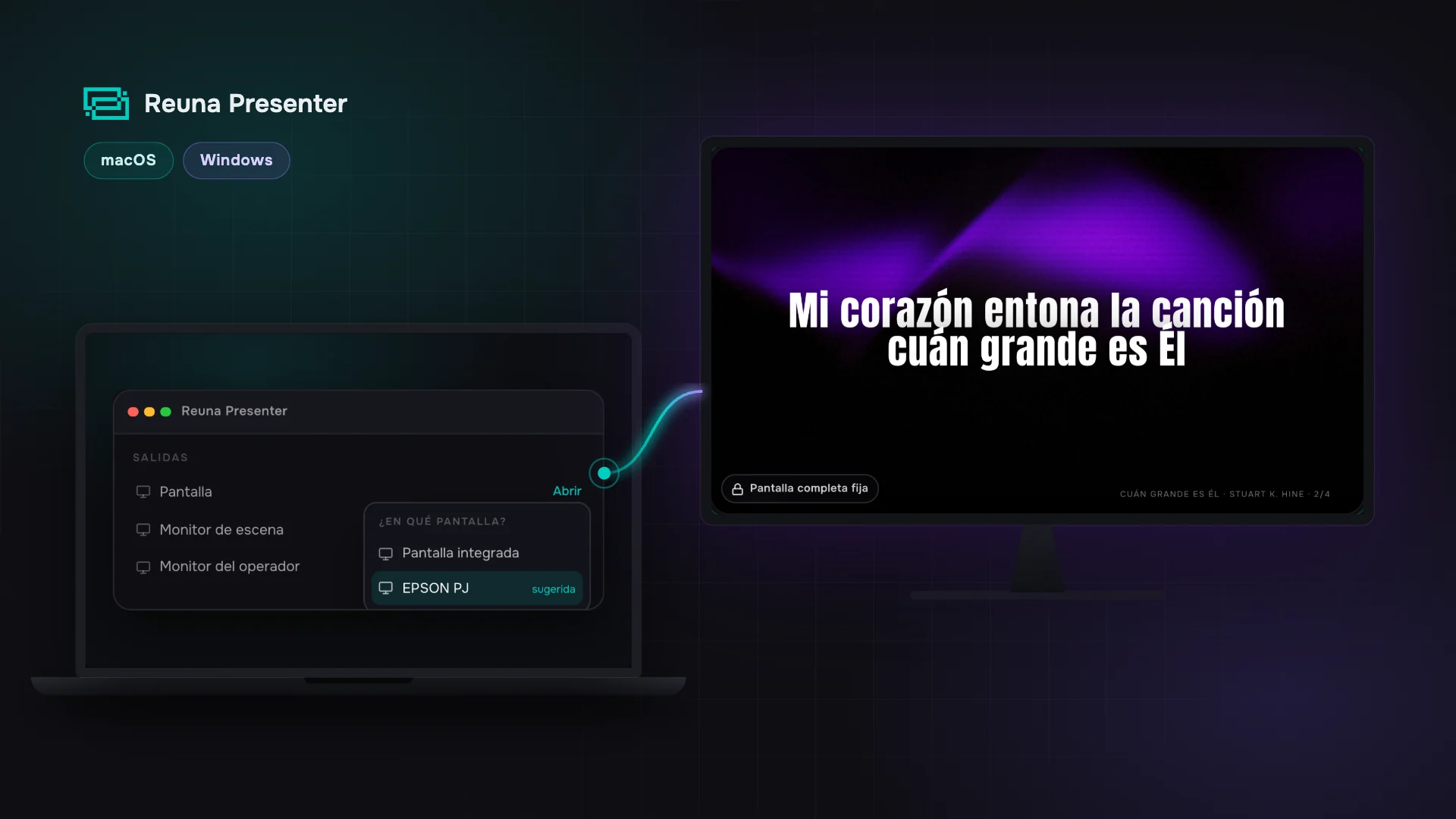
Desktop App for Church Projection: Reuna for Mac and Windows
Reuna's free desktop app keeps every output on its projector even when you open a file, and puts it back on its own if a cable slips. Here's how to use it.
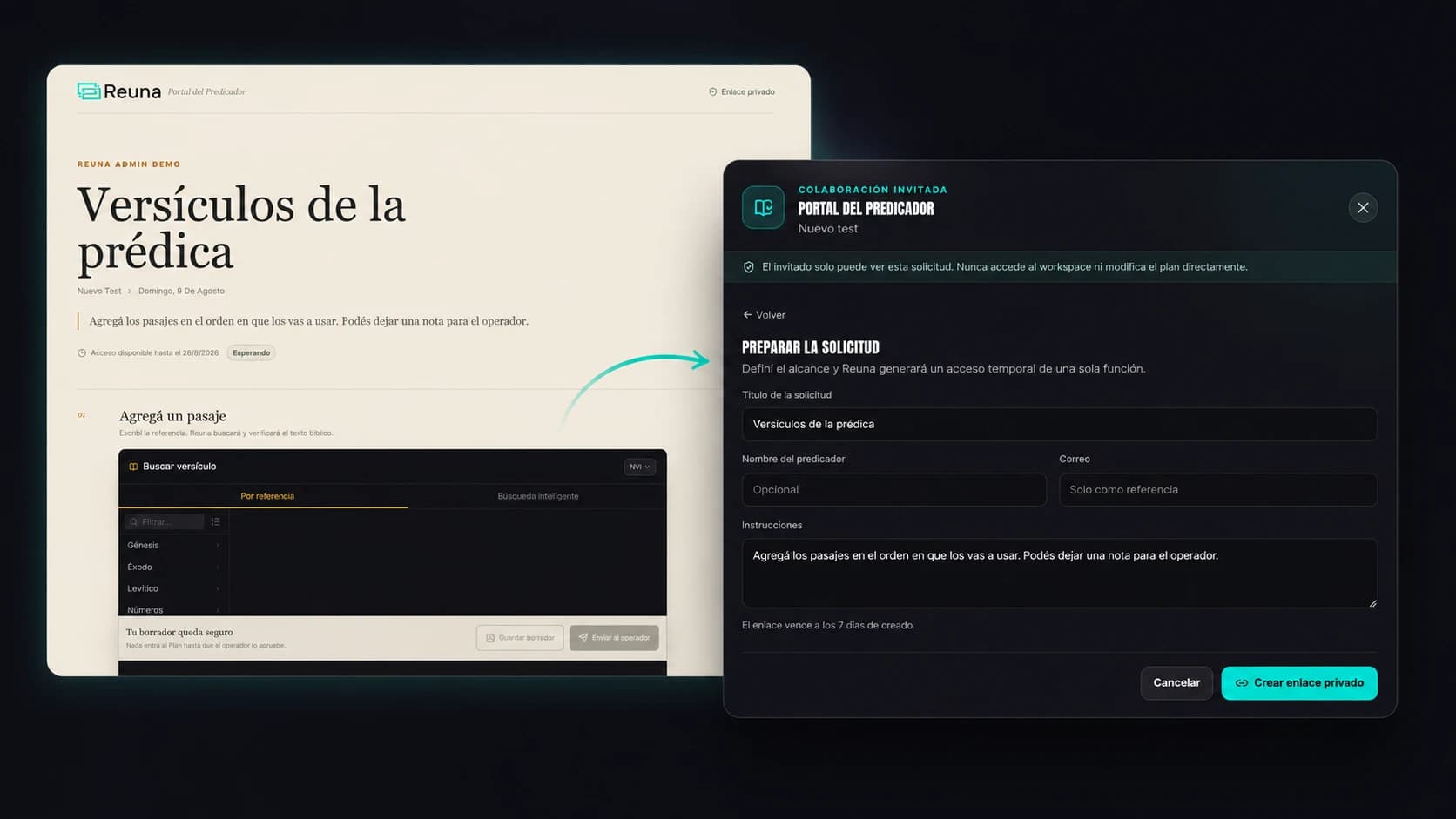
Preacher Portal: No More Chasing Your Guest Speaker Over WhatsApp
Reuna's Preacher Portal lets a guest speaker add their scripture references from their phone, no account needed, while you approve every item.
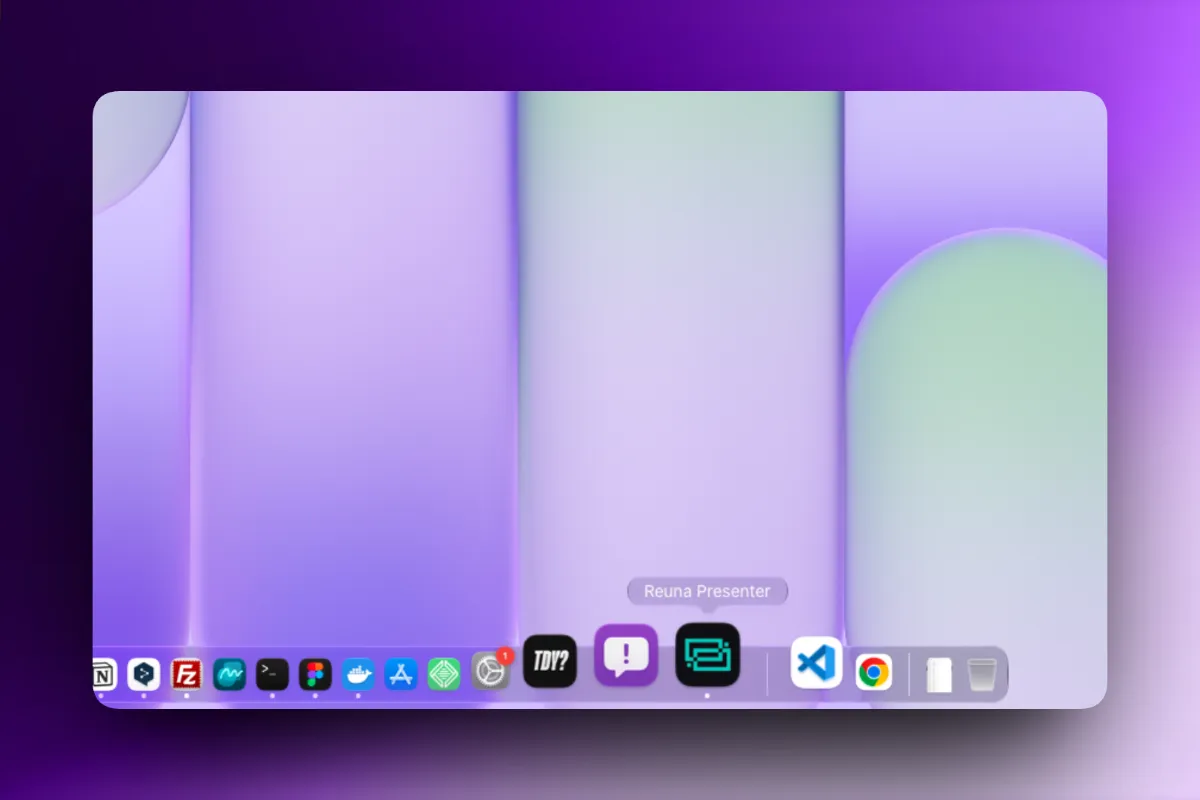
How to Install Reuna on Your Church's Computer (and Why It's Worth It)
Reuna can now be installed as an app in two clicks, no download or admin password required. Here's the step-by-step and why it's worth doing.