Desktop App for Church Projection: Reuna for Mac and Windows
Reuna's free desktop app keeps every output on its projector even when you open a file, and puts it back on its own if a cable slips. Here's how to use it.

It's 10:15, service starts at 10:30, and someone hands you a last-minute announcement video. You find it with the file picker and, when you look up, the countdown no longer fills the projector: it's sitting in a window with borders, in full view of everyone walking in. Nobody did anything wrong — that's the browser protecting itself, and it's exactly what a desktop app for church projection prevents.
That's why — along with two other Sunday classics — there's Reuna Presenter for Mac and Windows, free on every plan. Here's what it fixes, how to install it and how it differs from desktop-only software.
What can go wrong in the browser
Reuna works fully in the browser, but there are three things a tab can't completely control:
- A dialog or the file picker in the tab that opened the projection: Chrome takes every one of its outputs out of fullscreen.
- A loose cable: the operating system usually moves the output to the display that's left — the operator's laptop.
- The display going to sleep: the browser keeps it awake only while the output is visible.
Reuna already cushions this: it avoids browser dialogs, warns you in Media before opening the file picker and, if an output loses fullscreen, offers “Restore” (in Chrome and Edge). It works, but it depends on someone paying attention.
What changes with the desktop app
The desktop app uses the same account and loads Reuna just as you already know it; what changes is that the outputs are opened by the app, not by a tab.
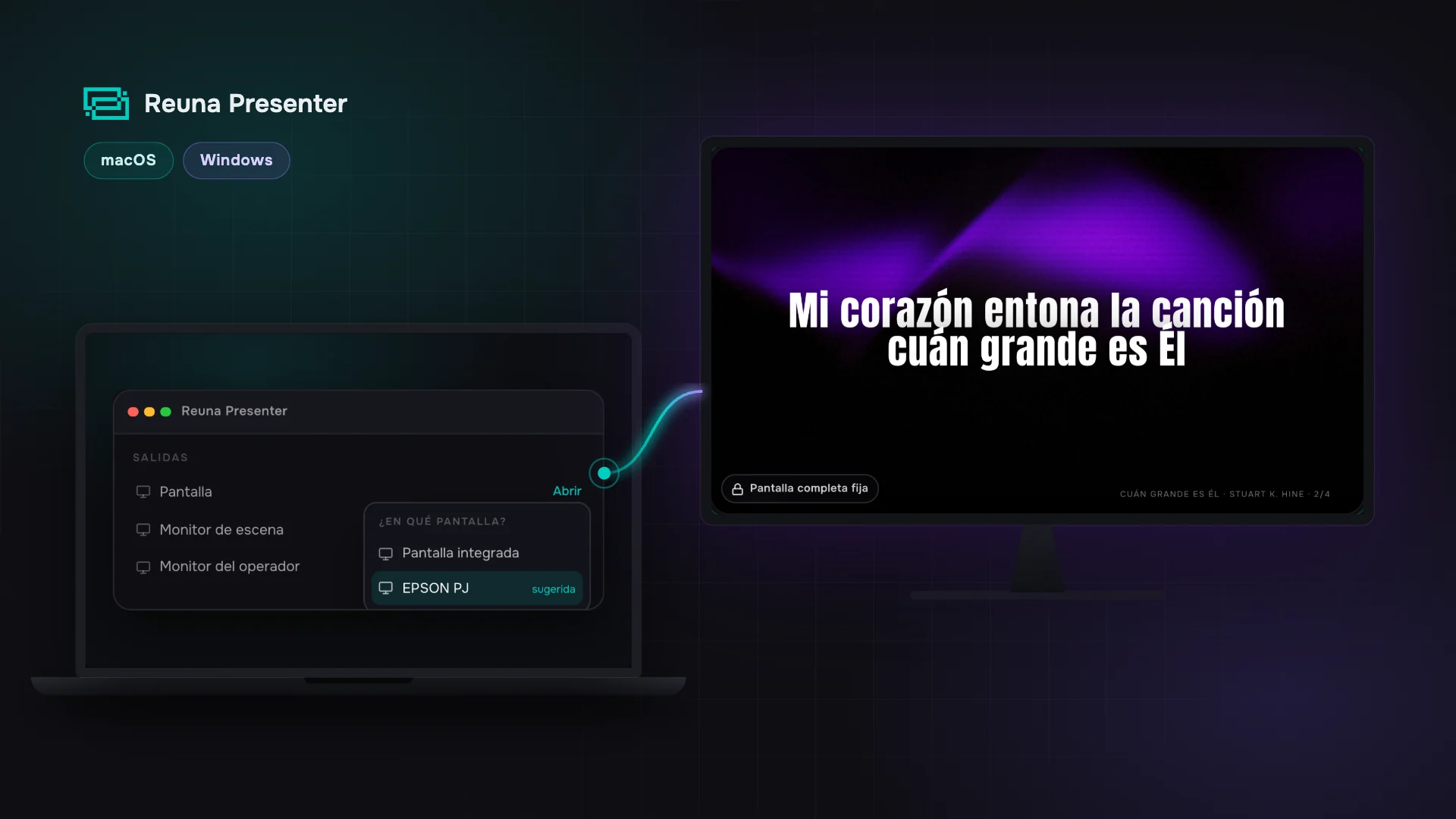
- Each output on its own projector. When you open the “Screen” or the “Stage monitor,” Reuna asks “Which display?” and opens it there, in fullscreen.
- Fullscreen no longer gets lost. No dialog, file picker or reload in the operator window takes it away.
- If the projector goes away, the output waits. It hides instead of landing on your laptop and comes back on its own when the projector reappears.
- Neither the display nor the computer goes to sleep while an output is open.
- Quitting asks for confirmation: with outputs open, the app asks “Quit Reuna Presenter?”
- On Mac, updates wait: they install when you quit the app, never in the middle of a service; on Windows they come through the Microsoft Store.
The limits are your plan's: the Free plan has one screen, and the “Stage monitor” starts on the Pro plan. In the latest version, the Pro and Church plans add “On this computer” to Media: images and videos from your disk (JPG, PNG, WebP, MP4 or WebM) that aren't uploaded to the cloud and only project on that computer's outputs.
How to install it on Mac and Windows
Both versions are on the download page. On Mac it's a direct download, signed and verified by Apple (macOS 12 Monterey or later): drag Reuna Presenter into Applications and you're done. On Windows you install it from the Microsoft Store, on Windows 10 (1809) or later.
Then sign in with your Reuna account; with Google, sign-in goes through the browser and comes back to the app on its own.
Your first Sunday with the app
1. Install it on Saturday, not Sunday morning. With internet, sign in and open Sunday's service plan on that computer. If there are videos or heavy backgrounds, tap “Prepare meeting” (above the plan) in the app to download them there.
2. Put the computer in Extend mode. On Windows, press Windows key + P → Extend; on Mac, in System Settings → Displays, make sure the projector is set as an extended display, not a mirrored one. If it's your first time, this guide to connecting the projector walks you through it step by step.
3. Open the output and choose the projector. In the outputs panel, at the very bottom of the sidebar, tap “Open” next to Screen and choose the projector. Next time it shows up as “saved.”
4. On a Mac that stays put, turn on “Open outputs at launch.” It's in the “Outputs” menu in the menu bar and is off by default. Once it's on, the outputs go back to their monitors on their own when the app opens. Turn the projector on first: if it isn't connected, the output opens in a window on your laptop and moves to the projector when it appears.
5. Test the worst case before people arrive. With the output on the projector, unplug the HDMI for a few seconds and plug it back in: the output doesn't fall onto your laptop and, once the computer sees the projector in Extend mode again, it returns to fullscreen on its own.
Compared with desktop-only software
Classic presentation software has real strengths. ProPresenter is an industry standard — with macros, timecode and MIDI control — and its Cloud syncs the computers it's installed on. EasyWorship has also run on Mac since April 2026, and one license covers every computer at a campus. FreeShow is free, open source, also runs on Linux and supports unlimited outputs. And all three, once installed, project without depending on the internet; Reuna, on the other hand, needs internet to sign in and save changes.
Where Reuna differs is the starting point: you don't need to install anything to prepare. Services, songs and styles live in the account and open from the browser on any computer; on the church computer you project from the app. If FreeShow is the one you're weighing, our FreeShow vs Reuna comparison goes deeper.
| Where it runs | How you pay | Data across computers | |
|---|---|---|---|
| Reuna Presenter | Browser + free app for Mac and Windows | Free plan at no cost; Pro plan $12 or Church plan $30 per month, no per-computer license | In the account, except local media |
| ProPresenter | App for Mac and Windows | Per seat: $29 per month or $289 per year (Standard); editing doesn't require an activated seat | Cloud across installed computers; doesn't present from the browser |
| EasyWorship 8 | App for Windows and Mac | From $17.50 per month depending on attendance | No cloud for now; profile transfer |
| FreeShow | App for Windows, Mac and Linux | Free and open source | Free Cloud Sync with a ChurchApps account, no media |
Prices and platforms verified on each product's official site in October 2026.
When the app makes sense
It makes sense if you always project from the same computer, if you run more than one output, or if your team rotates volunteers and the projector has to just work. The page for AV volunteers explains how Reuna is designed for whoever shows up 20 minutes early.
You don't need it to prepare the service from home — the browser is enough. On Linux or a Chromebook, where there's no app, Reuna runs in Chrome, with the precautions we covered above.
Create your free account, install the app on the church computer and run the cable test before next Sunday.
Frequently asked questions
Does the desktop app cost anything?
No. It's free on every plan, including the Free plan; how many outputs you can open depends on your plan.
Does it work without internet?
Partly. If you've used it with internet on that computer in the last 7 days, the app starts offline and the outputs keep projecting even if the network drops. Without internet, changes aren't saved and the remote control, network screens, OBS and YouTube don't work, and from the cloud you only have the media you downloaded with “Prepare meeting” and the Bible chapters already opened in the app.
Ready to try Reuna?
Start free in the browser, with nothing to install. Forever-free plan, no credit card, and a free app for Mac and Windows.
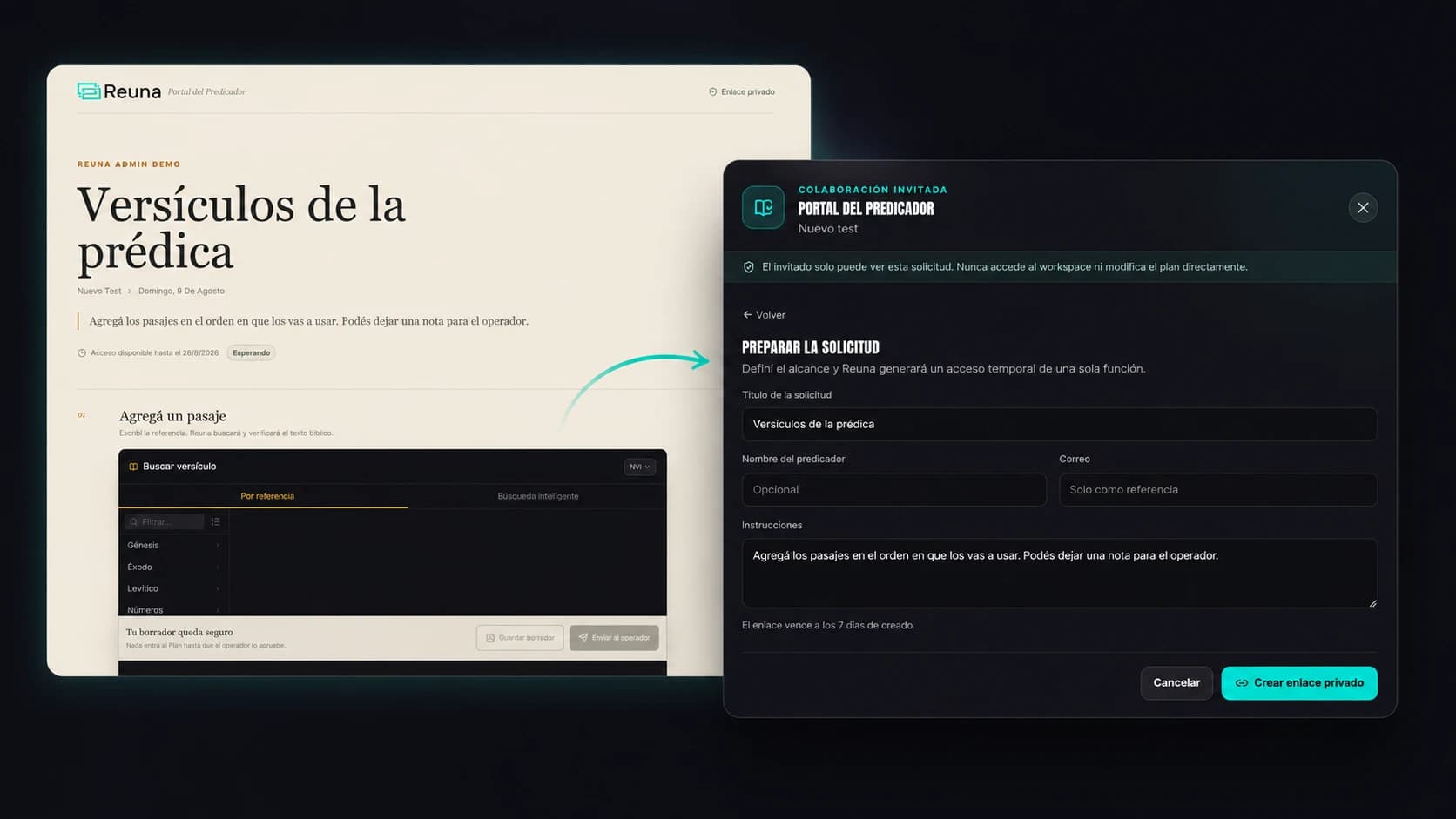
Preacher Portal: No More Chasing Your Guest Speaker Over WhatsApp
Reuna's Preacher Portal lets a guest speaker add their scripture references from their phone, no account needed, while you approve every item.
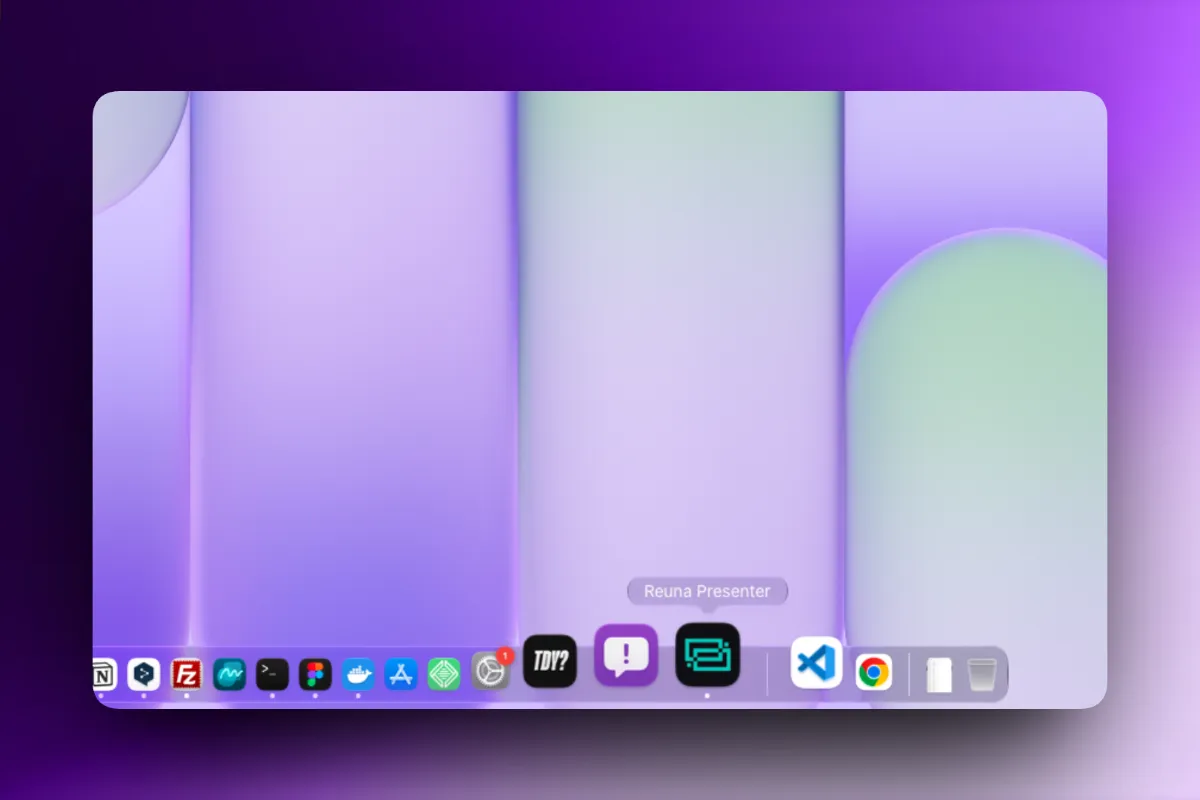
How to Install Reuna on Your Church's Computer (and Why It's Worth It)
Reuna can now be installed as an app in two clicks, no download or admin password required. Here's the step-by-step and why it's worth doing.
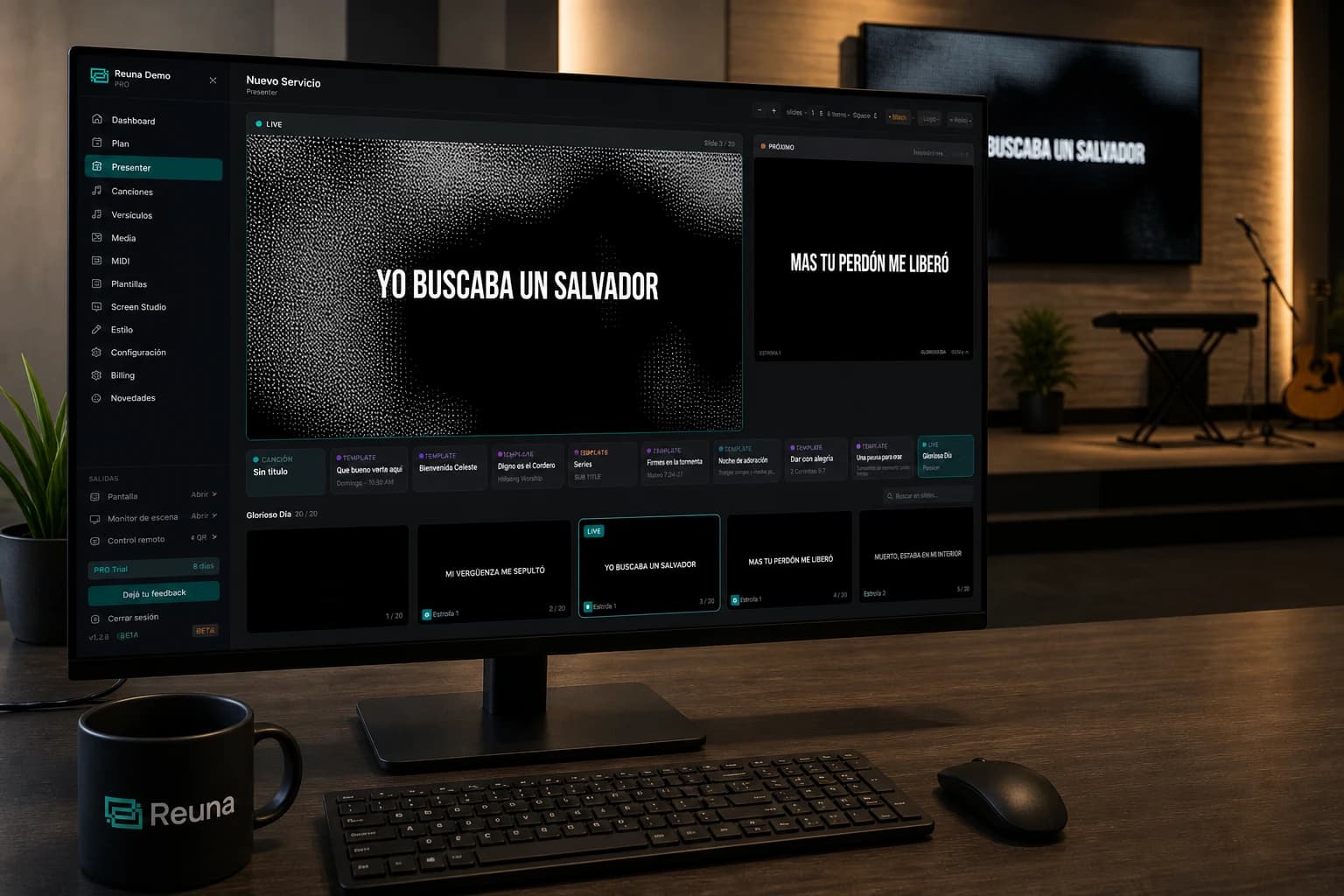
Multi-screen setup for small churches: step-by-step on a tight budget
How to build a setup with a main screen + stage monitor + remote control in a small church for under $500 USD. Hardware, configuration and troubleshooting.