NDI®, Syphon and Spout: Send Reuna Lyrics to Your Video App (Beta)
Send transparent lyrics or Reuna's full screen to your video app over NDI®, Syphon or Spout. Here's how to set up the beta and what its limits are.

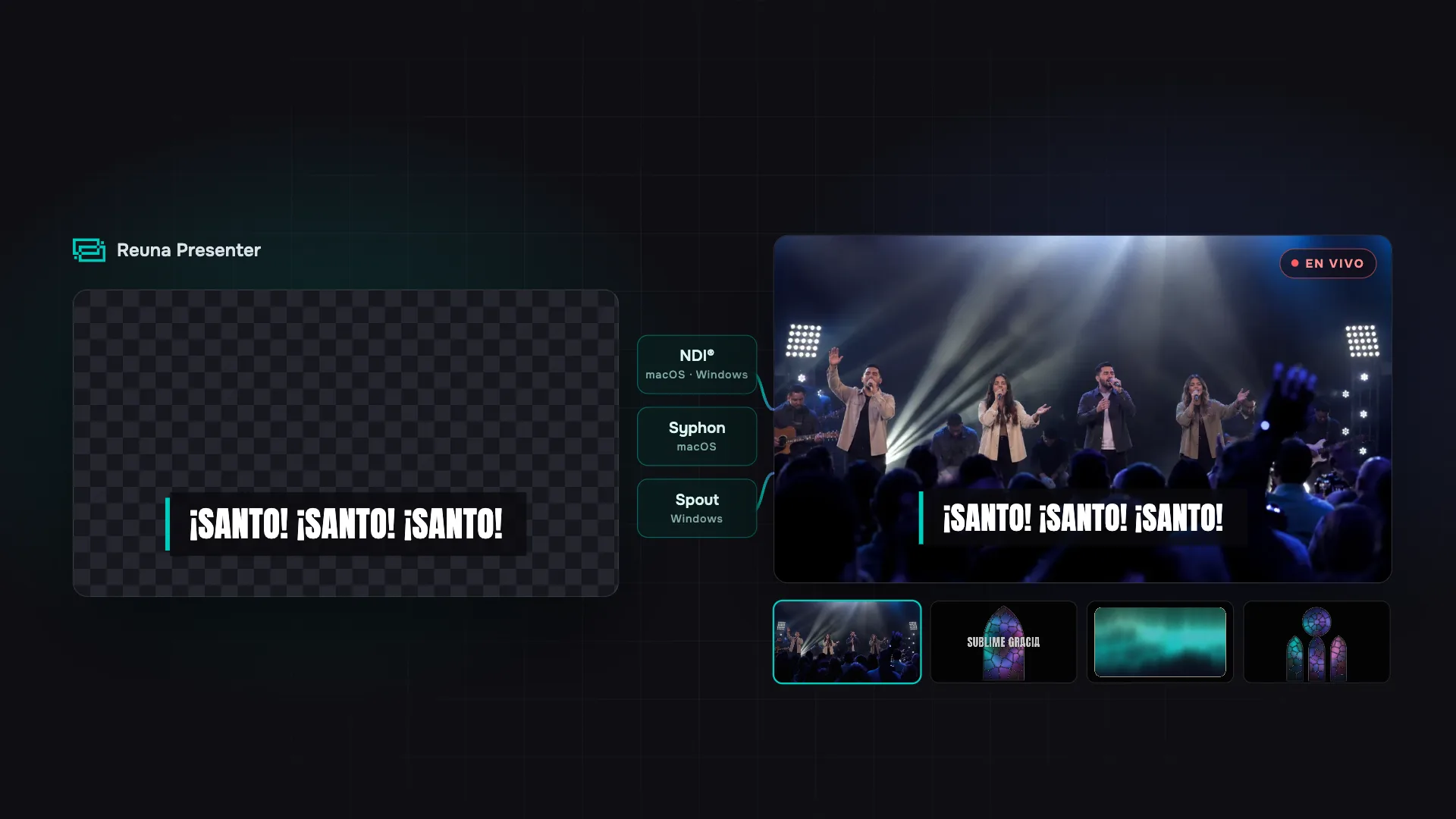
If your church streams its services, you know the scene: the streaming team at the back of the room, trying to get the lyrics to sit cleanly over the shot of the band. It often gets solved with a capture card and a chroma key that never looks quite clean, even though the streaming app already knows how to receive video over NDI®.
With desktop app 1.1.0, Reuna adds video outputs: your projection goes out as a native video source over NDI®, Syphon or Spout, ready for your streaming or visuals app. It's a beta — the app labels it “Beta · in testing” — so here we cover what it sends, how to set it up and what its limits are.
Two signals: transparency or full screen
The first question is “What would you like to send?”, and each option serves a different team.
“Lyrics with transparency” sends only the content, with a real alpha channel: no background to cut out, no chroma key to tweak. It shows songs, scripture, custom text and countdowns, using your OBS overlay style and only the types you have turned on there. It carries no backgrounds, images or videos. This is the option for putting lyrics as a lower third over the camera.
“Full screen” sends the whole composition in 16:9: content, backgrounds, videos, transitions and Masks and frames, with the projection's style or the style of a screen you choose. It works for the visuals team, or for recording the same composition you project, without the audio. It doesn't apply crops or physical projector adjustments such as edge blending.
NDI®, Syphon or Spout: which to choose
Next it asks “Where will you receive it?” and, under “How do you want to connect?”, marks the matching connection as “Recommended”.
On this computer. If both apps run on the same machine, the direct connection is the better fit: Syphon on Mac and Spout on Windows, with transparency and without using the network. NDI® remains an alternative, although it still announces the source across the whole local network.
On another computer. This goes over NDI®, with both computers on the same local network — ideally wired. If the source doesn't show up, check the macOS local network permission and the Windows firewall. Guest Wi-Fi networks, or networks that isolate each device, can keep NDI® from finding it.
On the other end you need an app that receives NDI®, Syphon or Spout. Common examples are OBS with a compatible plugin such as DistroAV, vMix or Resolume, but these aren't apps we've tested or certified: always run the test in step 5.
How to turn on your first signal
1. Go to Outputs in the sidebar. Under “VIDEO BETWEEN APPS”, tap “Choose video output”.
2. Choose what to send, where and how. In the “Video outputs” dialog, Reuna suggests the connection that fits your system.
3. Give it a clear name, different for each source and computer: it's the name you'll look for in the receiver. Under “Advanced options” you pick the quality — Full HD or Lightweight, at 30 fps — and, if you like, have the signal follow one of your congregation screens via “Source content”.
4. Tap “Turn signal on”. “Copy name” keeps the name handy so you can find the source in the receiver. With NDI® you can see how many receivers are connected; Spout can't detect them, so the status reads “Sending · check the image in your receiver”.
5. Test before the service. “Test signal” replaces what that source sends — and only that source — with an image showing the framing, the transparency and the name (in “Full screen”, color bars too). The projection doesn't change, but if that source is already live on your stream, viewers will see the test. Once it comes through correctly, tap “Back to the service”.
Beta requirements and limits
- Desktop app 1.1.0 or later, on a Mac or a Windows x64 PC (Intel or AMD); on Windows ARM, this feature isn't available yet. If you don't have the app, you can download it for free.
- Pro plan or Church plan, or the Pro trial. On the Free plan you can explore the selector, but you can't turn a signal on.
- Owners and Admins create and edit sources; an Operator can only turn saved ones on or off.
- Fixed quality: 1920 × 1080 or 1280 × 720, at 30 fps. No 25, 50 or 60 fps, no 4K and no vertical formats.
- Video only, no audio: a sermon video arrives silent.
- Per computer: up to two saved sources per workspace and up to two sending at once, counting all your workspaces.
- Sources are saved on that computer and start switched off every time you open Reuna.
There are safeguards built with Sunday in mind: rehearsals never reach the signal. If a source drops, Reuna tries to restart it under the same name up to five times and lets you know when it's back on the air; in the meantime, the receiver may go a few seconds without a picture. If it can't recover the source, the signal turns off and Reuna tells you why.
While a signal is on, the computer won't go to sleep (the display still can), but Reuna has to stay open and signed in: if you close the app or sign out, the signals turn off.
What other programs do
NDI® is nothing new in church presentation software. ProPresenter lists NDI® output with transparency (key and fill) in a single signal, plus Syphon to other Mac apps. EasyWorship advertises NDI® HX3 and an alpha channel to OBS, vMix and Wirecast. And FreeShow, free and open source, sends any output over NDI® with a transparent mode; in its repository, the requests for Syphon and Spout were closed as not planned, because they aren't cross-platform.
Features verified on each program's official website and repositories in October 2026.
So what changes with Reuna Presenter? The context. Reuna runs in the browser, its desktop app is free on every plan, and a single service plan feeds the projector, the OBS link and now your video app. It adds Syphon and Spout for sharing video on the same computer. And roles separate whoever sets things up from whoever switches them on: the Sunday volunteer turns on the signal an administrator left saved on that computer. If your production depends on SDI outputs, ProPresenter and FreeShow cover more ground today; FreeShow also lets you run as many outputs as you want — see our FreeShow vs Reuna comparison.
When they make sense
They make sense if your streaming or visuals team already works with an app that receives NDI®, Syphon or Spout. But you don't always need them. For lyrics in OBS without the desktop app, there's still the OBS link as a browser source, on the Pro and Church plans. To get the picture onto the lobby TV or a tablet, there's Network output: it pairs with a QR code, it's on every plan and it counts toward each plan's screen limit. And they won't help for another campus: the NDI® signal travels over the local network, not the internet.
If your team already streams, create your Reuna account, start the free Pro trial and run your first “Test signal” from the desktop app before Sunday.
Frequently asked questions
Does it work from the browser or on the Free plan?
No. You need desktop app 1.1.0 or later and the Pro plan or the Church plan, or the Pro trial.
Is Reuna an official NDI® product?
No. NDI® is a registered trademark of Vizrt NDI AB. Reuna Presenter is NDI®-compatible and is not a product of, nor sponsored by, Vizrt NDI AB.
Ready to try Reuna?
Start free in the browser, with nothing to install. Forever-free plan, no credit card, and a free app for Mac and Windows.
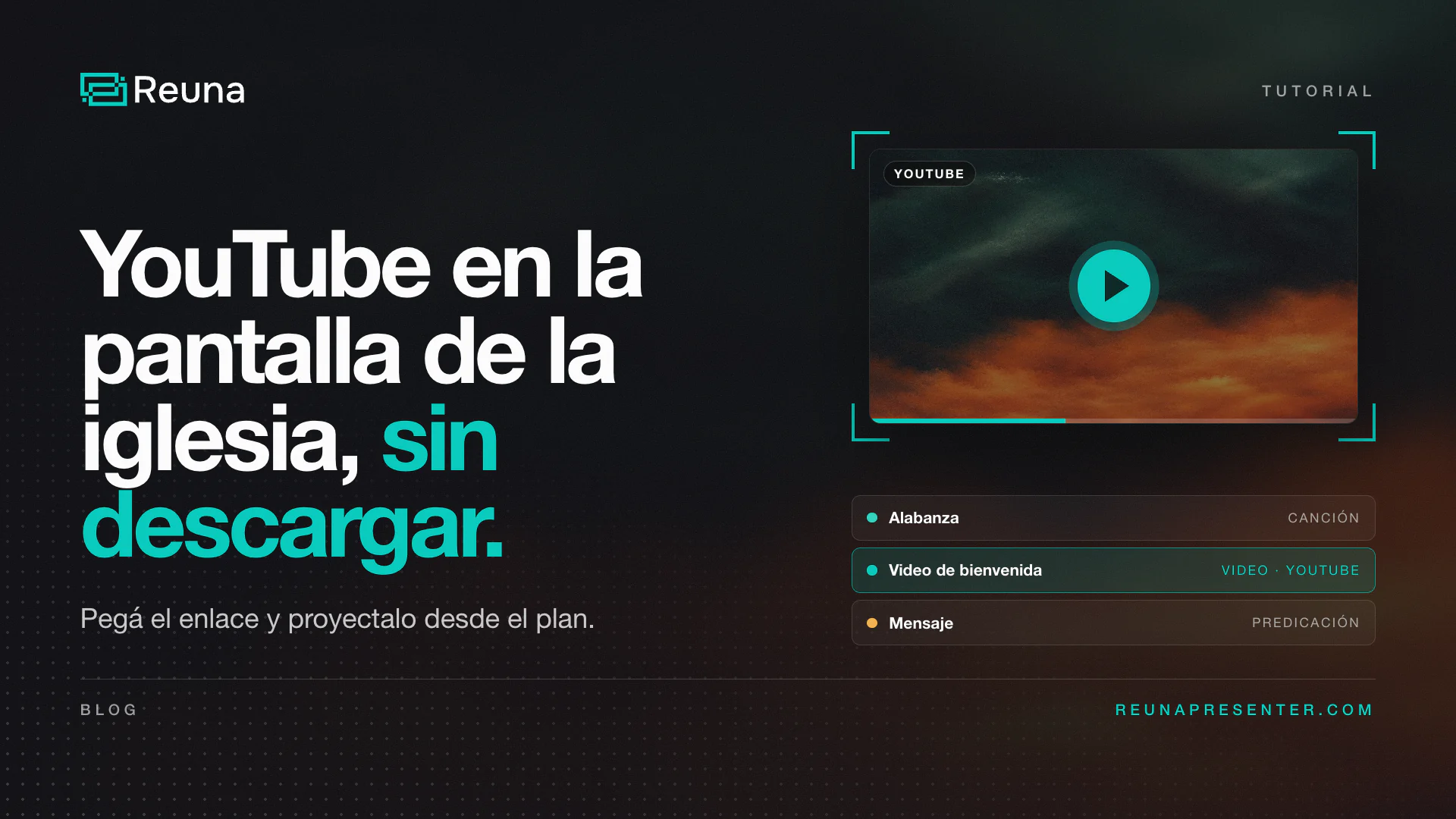
How to play a YouTube video on church screens without downloading it
Paste the link into a Video item and project it from the plan. What it needs, its limits, and what YouTube and ProPresenter say about permissions.
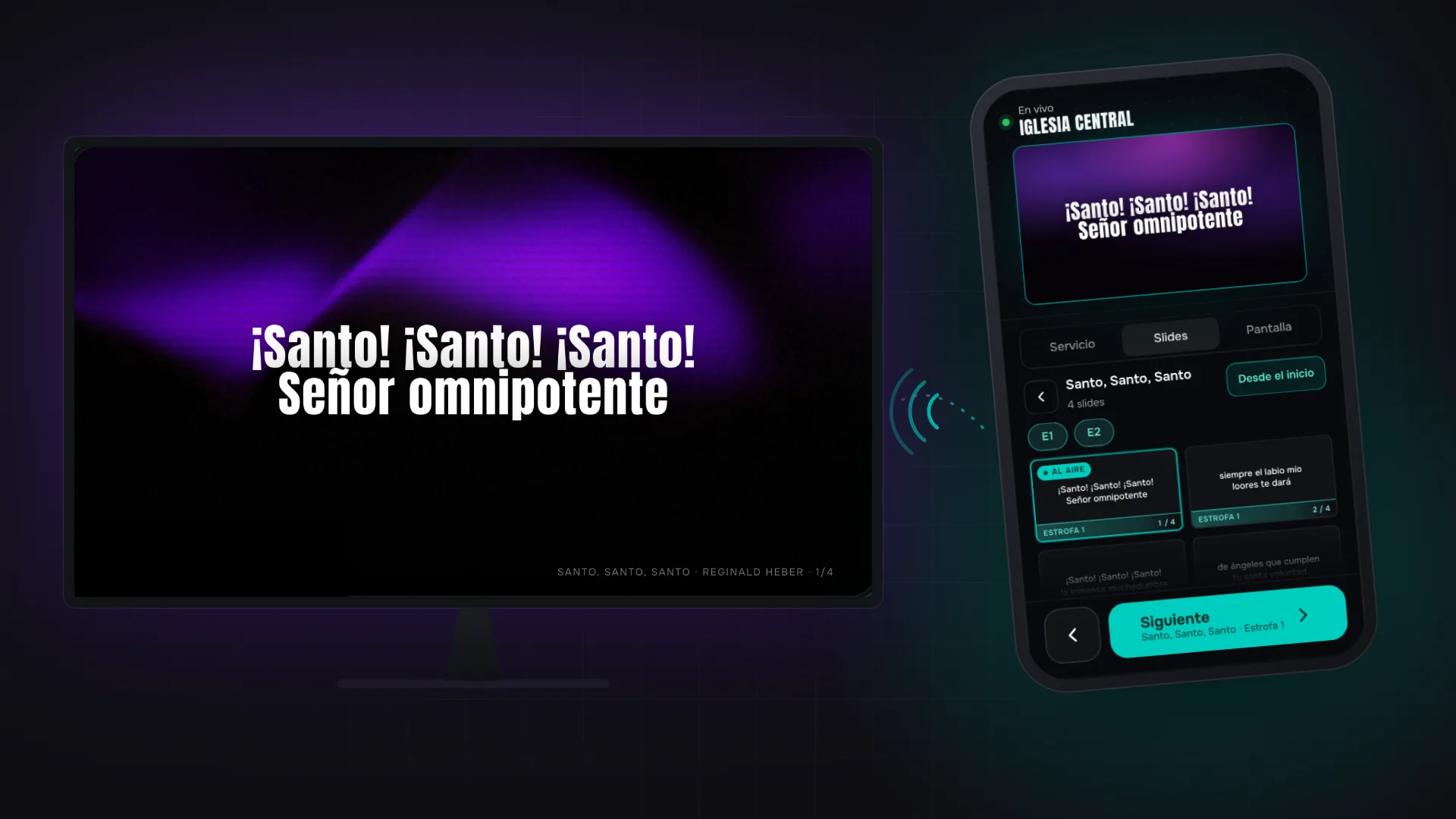
Phone Remote Control: Run Church Projection Without Being in the Booth
With Reuna's remote control, scan a QR code and your phone shows what's on air, steps through the service and projects, with nothing to install.
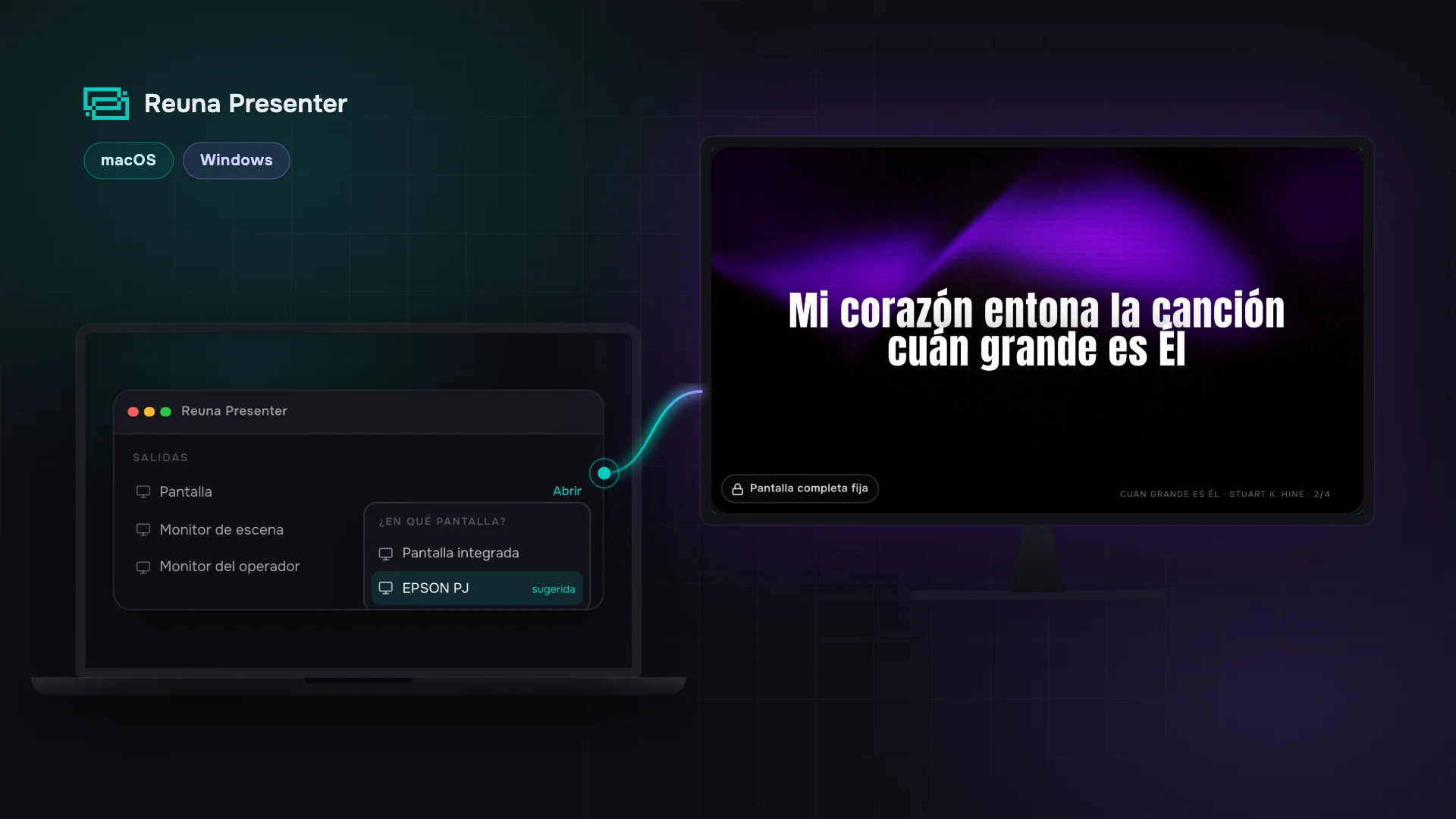
Desktop App for Church Projection: Reuna for Mac and Windows
Reuna's free desktop app keeps every output on its projector even when you open a file, and puts it back on its own if a cable slips. Here's how to use it.