Church Projection Design: Stained Glass, Frames and Standout Choruses
Learn to design projection that reads from the back row and use stained glass, per-section styles and Atmospheres in Reuna, step by step, without overdoing it.

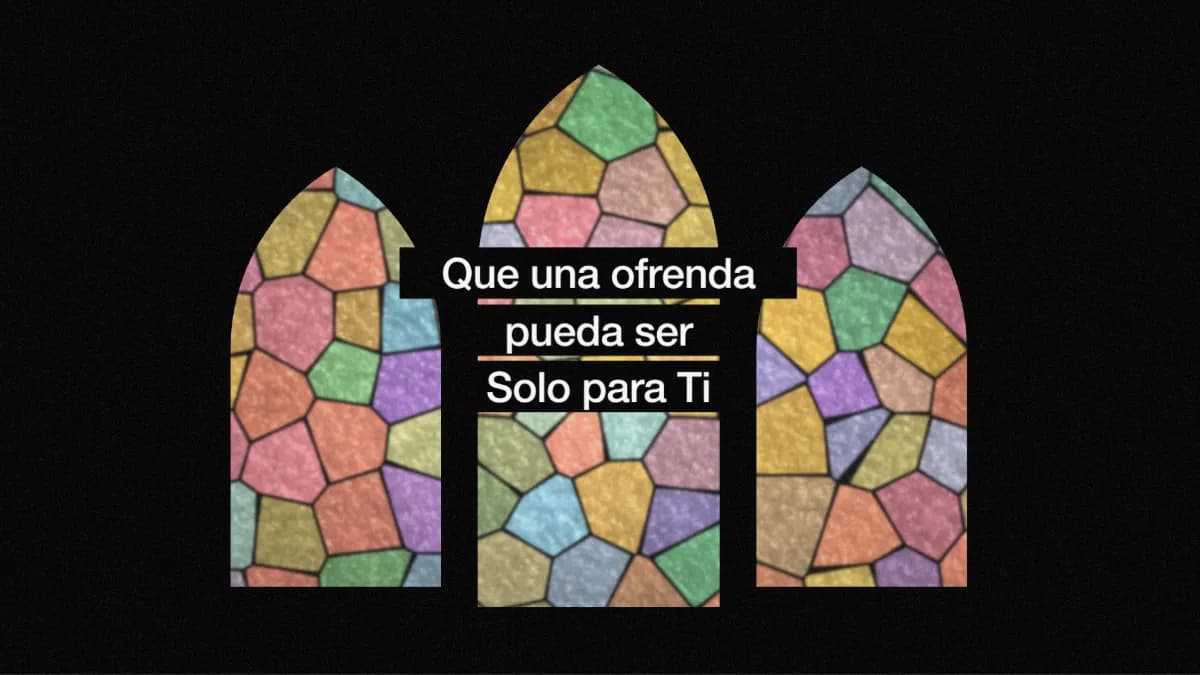
Christmas is coming and, like every year, someone on the team asks whether the screen could look different this time. The temptation is to throw everything at it: a background with lots of motion, a transition on every slide, glowing lyrics. Then on Sunday morning, from the back row, nobody can read the chorus. Church projection design isn't decoration — it's helping the church sing without straining.
First, the principles; then, how to apply them in Reuna with Masks and frames, Style by section and Atmospheres.
Principles of projection design
- Readable from the back row: a clear font, a generous size, few lines per slide. Test the style with your longest song; if it reads well there, it reads well everywhere.
- Contrast before decoration: whatever moves behind the text should be calm or dark.
- One strong idea per series: the same look for a whole sermon series or all of Advent.
- Frames for special moments: a stained-glass window on Christmas Eve, an arch at a baptism, a cross on Good Friday. If it's there every Sunday, it stops saying anything.
- The chorus, one step up: that's where the church sings loudest, and the screen follows with a little more size or light. One step, not a leap.
How to do it in Reuna
All three tools are included in the Pro and Church plans, and also during the Pro trial.
Stained glass and frames
Masks and frames arrived in version 2.90.0: it cuts the projection into a shape, from a simple arch to a full stained-glass window.
1. Create the mask. In Style › Masks, tap “New mask” and choose the screen, or “All screens”.
2. Start from a design. There are 20 ready-made ones — Gothic window, Rose window, Cathedral, Triptych, Arch, Cross and more — that adapt to the screen's proportions; then you move, scale and rotate each shape on the preview. Heads-up: choosing a design replaces the shapes the mask already had, so duplicate the mask first if you want to keep them.
3. Decide what it cuts. “Background only” keeps the lyrics whole on top. “Everything” also cuts lyrics, media and templates: it's the one for projecting onto a real window or wall.
4. Let the background show through. In stained-glass windows, the panes are clear by default: the animated background or video shows exactly as it is, and only the lead lines draw the window. If you want color, raise “Coloured glass”.
5. Put it on air. Switch on “On air” and tap “Apply”, which instantly sends every pending change in Style, so do it before the service. You can prepare up to 12 masks; each congregation screen shows one at a time.
A screen can have its own frame in Screen Studio (the “Frames” tab), and a song can have its own from Songs. The screen's frame wins, then the song's, and finally the one in Style.
A chorus with its own style
Since version 2.89.0, each part of a song — Verse, Pre-chorus, Chorus, Bridge, Intro, Outro and Custom — can have its own text, motion and, if you want, background.
1. Pick the section. In Style, use the “Song section” row, in Text (under “Song”) or in Effects. Tap Chorus: whatever you change applies to every chorus. In Songs you adjust the chorus of one specific song, and that wins over Style.
2. Take it up a step. “This section's scale” goes from 60 to 180%. The “Quick looks”, such as Spotlight or Anthem, give you a starting point.
3. Decide how it comes in. In Effects you choose the transition — the new ones include Wipe, Rise, Settle and Iris — with its speed and feel, plus a text animation such as Reveal, Wave or Glow. On the Free plan, the new transitions fall back to a fade and the text comes in without animation.
4. If needed, a background of its own. In Background, with “Separate backgrounds per section”, the chorus comes in with a different background, or with the same one and a different “Background mood”: brighter, more colorful, blurred or tinted.
Atmospheres for every series
Atmospheres is a set of 22 color-field backgrounds in four families, under Background › Animated background. You choose 2 to 6 colors — the palette of the series — and how much space each one takes (in Flow and Mesh, where it sits as well); in Forms, you also pick one of 31 silhouettes, such as Arch, Drop or Ring. Under a stained-glass window, that color shows through the panes. For more motion, there are the animated backgrounds.
Common mistakes
- Too many effects at once: stained glass, an intense background, “Bouncy” and “Typewriter” on the same chorus all compete with one another. Let one thing lead and leave the transition on “Only when the section changes”.
- Text over busy glass: with “Background only”, a very colorful background competes with the lyrics. Leave “Coloured glass” at 0%, lower the brightness with “Image adjustments”, or add a text shadow or text background.
- Frames that cut off the lyrics: with “Everything”, a line wider than the arch gets lost, so use it only on a real surface. And if you change a screen's shape, check its mask: if it looks stretched, “Fit to this screen” redraws it.
- Choruses that don't change: if the song is linked to a song template, the template wins; in Songs, a notice with an “Unlink” button tells you so.
What other apps already do
Cutting the projection into shapes isn't something we invented. ProPresenter has Masks (custom shapes or transparent areas), Props for layering media or text on top, and Looks for deciding which layers each output shows. EasyWorship has let you use shapes as masks for videos and images since 2021. And FreeShow, free and open source, adds a clip shape for text boxes, blend modes for media and more than 20 animated effects.
What Reuna Presenter brings is a starting point of 20 ready-made designs, including stained-glass windows that let a moving background show through, per-section styles you define once for every song, and all of it in the browser, with nothing to install. If you're weighing the free route, our FreeShow vs Reuna comparison goes into more detail.
Features verified on the official websites and release notes, October 2026.
When it's worth it and which plan you need
| Masks and frames | Style by section | Atmospheres | |
|---|---|---|---|
| Where you edit it | Style, Screen Studio and Songs | Style and Songs | Background tab |
| Pro and Church plans | Included | Included | Included |
| Free plan | Build and preview | Locked | Locked |
Per Reuna, as of October 2026.
If your projection already reads well, there's no need to change anything: the Free plan covers a full service, within its limits (one screen, up to 18 items per service). These tools earn their place when a special date comes up, a new series starts or the building has arches that call for a frame.
All of this — the new transitions and animations included — is part of the Pro plan ($12 per month) and the Church plan ($30 per month), with the option to pay in pesos in Argentina; details on our pricing page. If your workspace hasn't used its Pro trial yet, the owner can start it from Billing: 10 days, no card required.
If there's a special date on your calendar, create your Reuna account and build your first stained-glass window early enough to test it.
Frequently asked questions
Can I try masks on the Free plan?
Yes. You can build them and see them in the preview; to put them on air you need the Pro or Church plan, or the Pro trial.
Does the stained glass move?
No. The stained glass in Masks and frames stays still; what moves is the background you see through the panes. “Vitral”, one of the Pro plan's animated backgrounds, is a different thing: that one does move.
Do I need the desktop app for all of this?
No. Everything works in the browser; the Mac and Windows app is optional and uses the same account.
Ready to try Reuna?
Start free in the browser, with nothing to install. Forever-free plan, no credit card, and a free app for Mac and Windows.
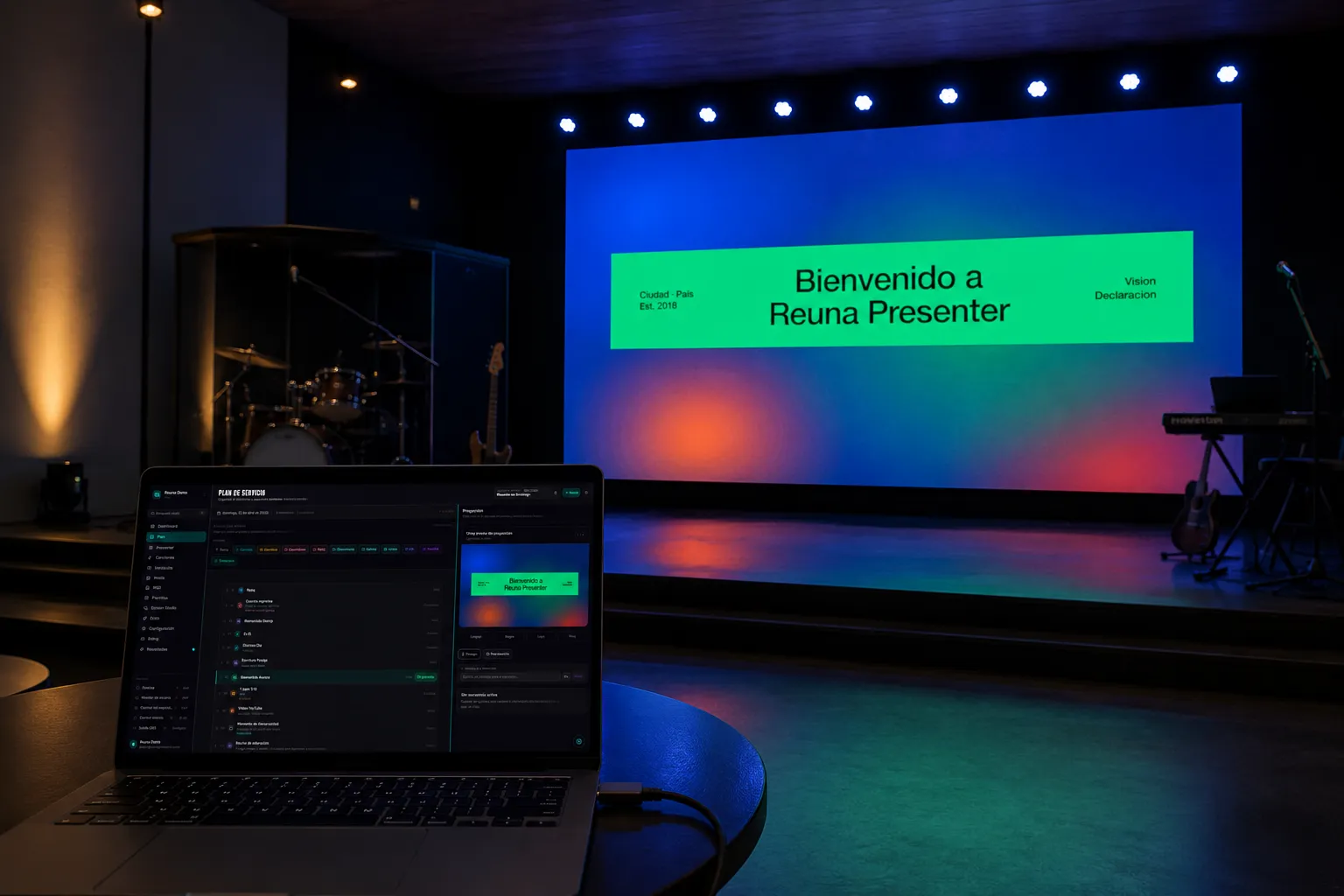
How to Connect a Projector to a Laptop for Church (Step-by-Step Guide)
A complete guide to connecting your laptop to a church projector: cables, display settings, common problems, and what software to use for projection.
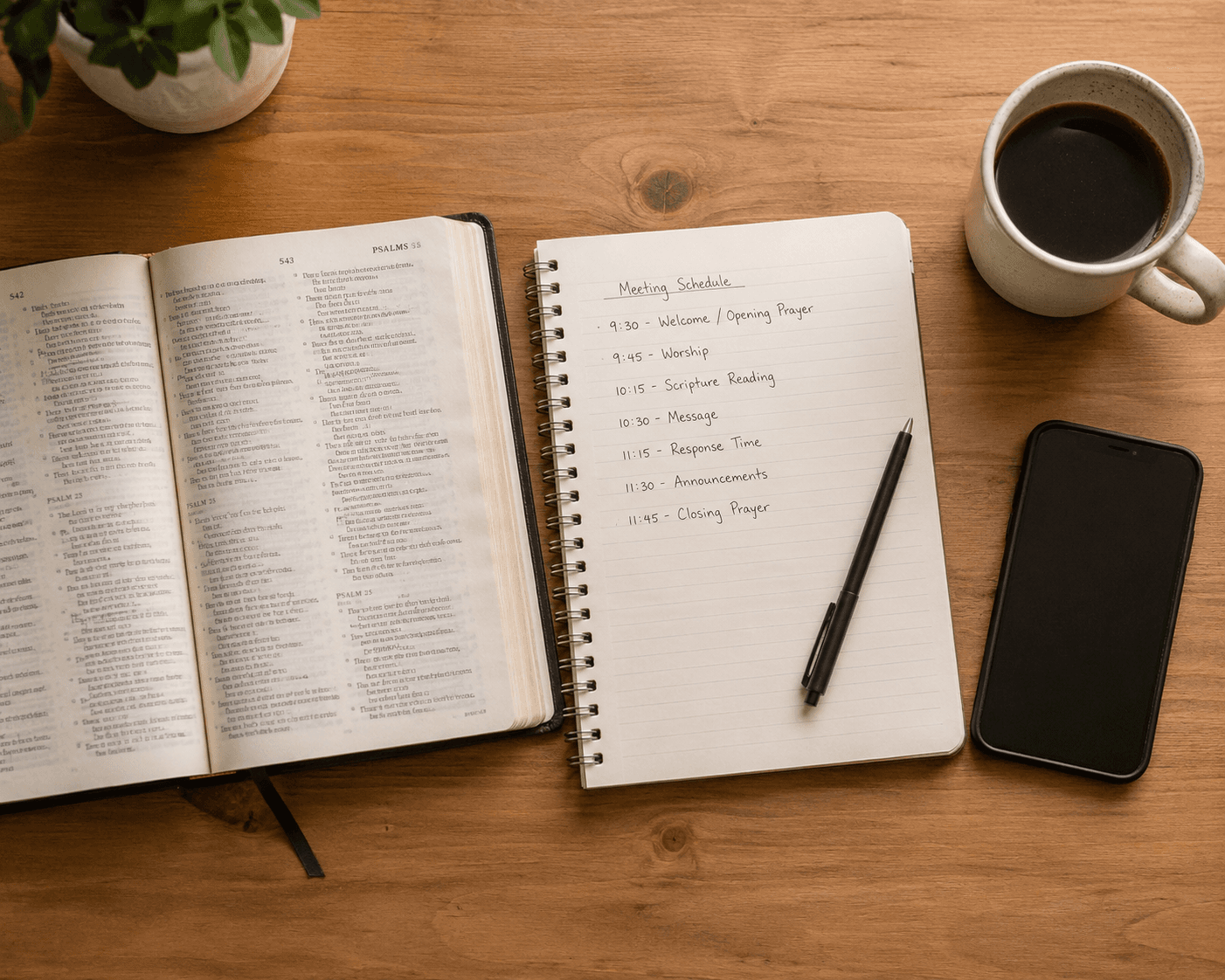
How to Create a Church Service Plan (Practical Guide 2026)
Step-by-step guide to organizing your local church service plan: what to include, how to order it, and how to manage it digitally from one screen.
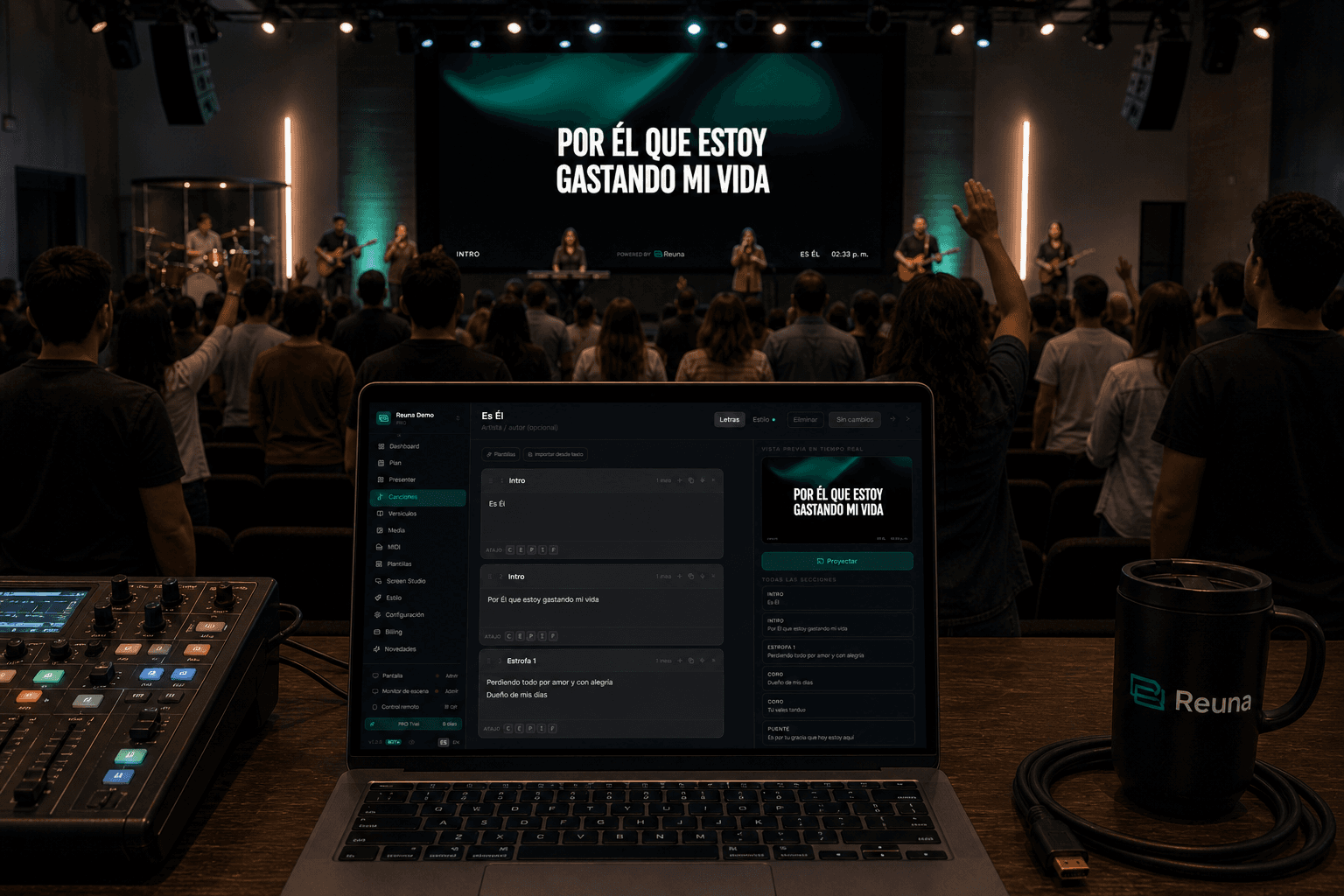
How to project song lyrics at church: complete 2026 guide
Step-by-step guide to projecting song lyrics at church: hardware, software, typography, offline mode and common mistakes that ruin the service.